 Koolest
Your TV’s home screen, without the ads.
Koolest is a free, open-source launcher for Android TV and Google TV, on any brand of TV or box. Your apps, your shows and your consoles, in a glass design made for the remote.
- Free and open source
- No ads, no tracking
- Under 1 MB
Version 2.5.1, for Android 8.0 and newer.
Look around
This is how the home screen works, too: a row along the bottom, and a large picture of whatever you’re on.
Use ← → on your keyboard, like the remote. Select the picture to enlarge it.
What it does
Koolest shows what you actually use. There are no sponsored rows, no account and no tracking, and it’s a single small app with no third-party libraries.
Continue watching that works
Everything apps report as partway watched, from Android TV’s Watch Next list and each app’s own channels. Browser tabs stay out.
Rows from your apps
YouTube, 30nama, Spotify and every other app that publishes to the TV’s home screen. Turn any row off, or move it up or down.
Consoles and inputs
Devices that name themselves over HDMI-CEC get a tile with their own logo. Selecting one switches the TV to that input.
Liquid Glass
The iOS 26 look: the menu and top bar are glass that shows what’s behind them, settings opens as a floating card over a blurred screen, and a focused item catches a sweep of light.
In English, French and Persian
Pick a language in Settings, Look, or follow the TV’s. Persian reads right to left, with Persian digits and dates. App names follow too, where the app has them.
The Home button, kept
Home opens Koolest even where the TV’s own launcher can’t be replaced, whether it’s Google TV’s, Android TV’s or your TV maker’s. Or make Koolest the only launcher, from the remote.
Weather, a clock and what’s playing
The time and date (Gregorian, Persian or both) in the top bar with the weather, and the song that’s playing, with its cover.
Wallpapers and a screensaver
Upload a photo from your phone with a QR code, or get a new Unsplash photo on a schedule, picked to suit light or dark mode. The Gallery screensaver shows public-domain paintings with a clock, weather and music.
A PIN for the layout
Lock settings and home screen changes behind a PIN, so small hands can’t rearrange everything. Apps still open as usual.
Updates from GitHub
Koolest checks for a new version once a day and installs it when you choose, from Settings, This TV, Updates.
Smooth on TV hardware
Pictures load just ahead of where you’re browsing, and the home screen draws as few full-screen layers as it can.
A screensaver worth looking at
Choose Gallery in Settings, Screensaver. 21 public-domain landscape paintings, or your own photos, under a clock, calendar and weather on frosted glass. The paintings download only if you pick this screensaver.
- A big clock with Gregorian, Persian (Shamsi) or both calendars, in a tile each or together
- The weather now, then the next hours, five days and details, turning like StandBy (▲ ▼ on the remote)
- What’s playing, with the cover and progress (Settings, Screensaver, Music)
- Choose when it starts and when the TV goes to sleep
- ◀ ▶ step through the paintings
Install
Koolest isn’t on the Play Store yet, so it’s installed as an APK file. It works on Android TV and Google TV with Android 8.0 or newer, from any brand: TCL, Sony, Philips, Hisense, Xiaomi, Chromecast, NVIDIA Shield and more.
With the Downloader app
Install Downloader by AFTVnews from the Play Store on your TV. Open it and type this address:
Choose Install when it asks. The first time, Android asks you to allow Downloader to install apps.
From a USB drive
Download Koolest.apk on a computer, copy it to a USB drive, and open it on the TV with a file manager.
With adb
If you already use adb with your TV:
adb install Koolest.apkThen open Koolest TV Launcher from your apps. Its settings open on the first launch, ready for setup.
Set up
Everything is in Koolest settings, This TV. Only the first step is required.
Turn on the Home button
Choose Home button. In the Accessibility screen that opens, turn on Koolest: Home button. Allow the TV listings permission when asked; the rows need it.
Android shows the same warning for every accessibility service. Koolest’s only listens for the Home key and for the system launcher appearing. It can’t read the screen.
Keep Home working
After a reboot, an update or a console session, Android can stop the Home button service. Keep Home working gives Koolest permission to switch it back on by itself.
Make Koolest the only launcher, if you like
The TV’s own home screen (Google TV, Android TV or your TV maker’s) always outranks other launchers. Only launcher turns it off, so Home always means Koolest. Switch it off to bring the old one back. Nothing is uninstalled.
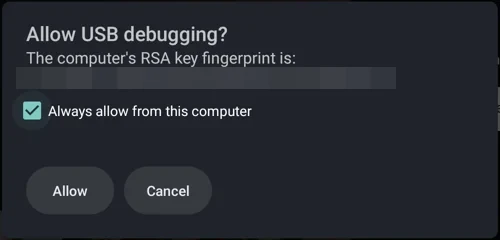
Steps 2 and 3 use the TV’s debugging. The first time, Koolest shows how to turn it on: press OK seven times on the Android TV OS build in Settings, About, then turn on USB debugging in Developer options. When the TV asks, tick Always allow and choose Allow. You can turn debugging off again afterwards; the changes stay.
With Only launcher on, holding Home no longer opens the Google TV dashboard, and its quick-settings panel and profiles go with it. Android’s full Settings app still works.
Using Koolest
| To | Go to |
|---|---|
| Turn home rows on or off | Settings, Home screen, Rows |
| Pin, remove or reorder apps in the menu | Settings, Home screen, Menu apps |
| Rearrange the Apps row | Hold OK on an app, or Settings, Home screen, Rearrange apps |
| Hide something from Continue watching | Hold OK on its card |
| Choose which apps feed Continue watching | Settings, Continue watching, Apps |
| Sort All apps | Open All apps and pick a sort at the top |
| Change the language | Settings, Look, Language |
| Change the theme or wallpaper | Settings, Look |
| Lock the layout with a PIN | Settings, This TV, PIN lock |
| Get back to the start of the home screen | Press Back: first to the row’s first item, then to the menu, then to the top |
Help
Something not working? These cover most of it. If not, open an issue and say which TV you have.
Will it work on my TV?
On any Android TV or Google TV with Android 8.0 or newer, whatever the brand. Fire TV is the exception: Amazon doesn’t let other launchers take over its home screen.
Home opens Google TV after a reboot, an update or a console
Choose Keep Home working in Settings, This TV. Then switch Home button off and on again. On TCL TVs this also lets Koolest past TCL’s own auto-start guard.
The Home button setting won’t turn on (Android 13 and newer)
Android blocks sideloaded apps from Accessibility at first. Open Android Settings, Apps, Koolest TV Launcher, choose Allow restricted settings from the menu, then try again.
Keep Home working says to turn on debugging
Koolest uses the TV’s network debugging on port 5555. Turn on Developer options (press OK seven times on the build number in Settings, About), then USB debugging, and Network debugging if your TV lists it. TVs that only offer Android 11’s pairing-code Wireless debugging aren’t supported yet; use the adb lines in the README instead.
Rows or Continue watching are empty
Allow the TV listings permission. After that, an app only shows up if it reports to the TV. Google TV’s own row also uses your Google account’s history, which other apps can’t read.
Why only one YouTube account?
YouTube publishes its home-screen rows for the account that’s active in the YouTube app only. Switch accounts in YouTube and Koolest’s row follows.
How do I use my own wallpaper?
In Settings, Look, open a theme’s wallpaper and choose Add from phone. Scan the QR code with your phone, on the same Wi-Fi as the TV, and upload a photo. Or copy files over with adb:
adb push my-wallpaper.jpg /sdcard/Android/data/dev.koolest/files/wallpapers/How do I bring Google TV back?
Switch off Only launcher in Settings, This TV. From a computer, adb shell pm enable com.google.android.apps.tv.launcherx does the same. A factory reset also brings it back.
Privacy
No analytics, no ads, no account.
Koolest only connects to the internet to:
- load artwork for the cards on the home screen
- check GitHub for a new version once a day, and download it when you choose
- download the Gallery paintings, only if you choose that screensaver
- download a photo from Lorem Picsum, only if you choose Unsplash photos
- fetch the weather, only if you turn it on, from ipwho.is and Open-Meteo
Music in the screensaver settings turns on notification access, the only way Android shares what’s playing. Koolest reads the playing track and nothing else. Add from phone runs a small upload page on the TV itself, reachable only on your home network and only while that screen is open.